
Advertorial
Multi-View Video Analysis

The Mechanics of Simultaneous Multi-View Video Analysis

Comparing footage one clip at a time slows the work. A researcher reviewing three camera angles, a strategist checking competing ad layouts, an analyst scanning surveillance feeds—each loses time switching between windows, reloading files, and holding the previous frame in memory while the next one loads.

4videos on one screen
90+subtitle languages
UHD / 4Khigh-definition support
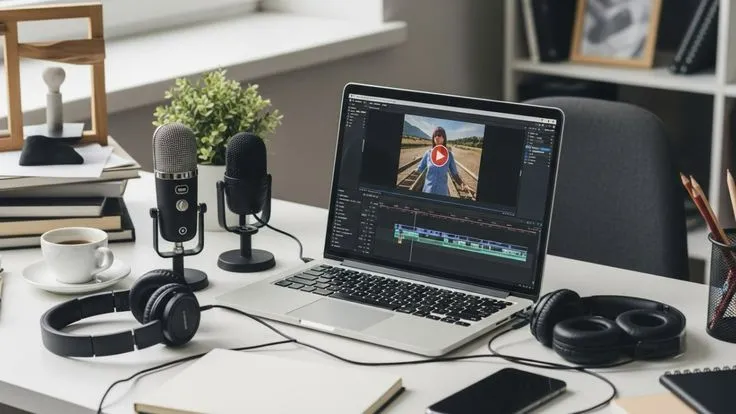
Editing workstation with a laptop showing a video timeline, microphones and headphones
Side-by-side playback

Simultaneous multi-view playback places several feeds side by side on one screen so you can read them together. The benefit is straightforward: faster comparison, fewer interruptions, and a clearer view of how separate sources relate. This article looks at how that capability actually works.

How simultaneous multi-view playback works

Instead of cycling through separate streams, you place several feeds side by side on one screen and read them together. This article covers how a system splits and decodes several files at once, how it scales each feed without distorting the image, how hardware acceleration prevents slowdowns, and where the approach pays off in real workflows.

Analyst reviewing data dashboards and visualizations on a screen
Multi-view analysis keeps attention on the content rather than on navigating between windows.

Understanding stream demultiplexing and system resources

Every video file is a container. Inside it sit separate streams—usually a video track and one or more audio tracks—interleaved into a single package. Before anything reaches the screen, the system has to pull those streams apart. This step is called demultiplexing, or demuxing.

With one file, that work is light. With four files open at once, the system demultiplexes four containers in parallel, then decodes each video stream through its own processing path. The decoding stage is the demanding part, since it reconstructs compressed data into full frames many times per second.

Why memory management decides the outcome

Memory management determines whether this holds together. A capable media application allocates system memory dynamically, assigning resources to each active stream based on its current load rather than reserving a fixed block per file. This keeps the central processor from being overwhelmed when several high-resolution decodes run at the same moment. When memory is distributed well, all four feeds play smoothly. When it is not, frames drop and playback stutters.

Visual coordination and multiscreen synchronization

Splitting one monitor into four working views introduces a separate problem: each feed has to fit its quadrant without losing its proportions. A video forced into the wrong shape stretches faces, skews objects, and makes accurate comparison unreliable.

The interface solves this by scaling each stream to its assigned area while preserving the original aspect ratio. Where the source dimensions don't match the quadrant exactly, the system fits the image within the available space rather than distorting it to fill every pixel.

Pixel interpolation and readable detail

Reducing a video's size also means resampling it. Display scaling relies on pixel interpolation—a calculation that determines the color and value of each pixel in the smaller image based on the surrounding pixels in the source. Done well, interpolation keeps edges defined and fine detail readable even at reduced dimensions. This matters most when the point of multi-view playback is scrutiny: you need to read small details across all four feeds, not a blurred approximation of them.

Mitigating processing bottlenecks through hardware acceleration

Running several high-definition files at once can quickly exhaust the central processing unit. The CPU handles general-purpose tasks well, but video decoding at scale is repetitive, parallel mathematical work—exactly the kind of load that overwhelms it. The symptoms are familiar: dropped frames, input lag, and an interface that no longer responds cleanly.

Hardware acceleration shifts that workload elsewhere. Instead of asking the CPU to decode every stream, the application routes the rendering to the graphics processing unit. The GPU is built for parallel calculation, which makes it well suited to handle multiple video decodes at the same time.

The division of labor: decoding runs faster and more reliably because it sits on hardware designed for it, and the CPU stays free for other tasks—so background applications keep running without interruption while the multi-view session continues. System stability holds even under a heavy four-stream load.

Applications in research and digital workflows

The technical architecture matters because of what it enables. Direct, side-by-side comparison changes how certain kinds of work get done. Consider a few cases:

  • A researcher reviewing field recordings can align footage from multiple cameras and track a single event across every angle at once.
  • A content strategist evaluating visual layouts can place competing versions next to each other and judge them on the same screen, in the same moment.
  • An analyst monitoring several feeds can watch for patterns across sources without missing activity on one while attending to another.

The common thread is reduced cognitive friction. Toggling between separate windows forces you to hold the previous view in working memory while loading the next—a small tax that compounds across hundreds of switches. Consolidating the streams into one space removes that tax. Attention stays on the content rather than on the act of navigation, which makes synthesizing complex visual data more accurate and less tiring.

Exploring multi-view environments with GOM Player+

GOM Player+ is a local media player that supports the multi-view workflow described above. It runs without advertisements and handles high-definition UHD and 4K files. Its feature set covers each stage of the playback chain:

  • Multi playback displays up to four videos on a single screen at once, supporting direct side-by-side comparison.
  • AI Video Upscaling analyzes frames to remove digital noise, reduce motion blur, and reconstruct fine detail across active feeds.
  • AI Voice Recognition Subtitle Generator produces SRT subtitle files in over 90 languages, generated directly from the audio in your media.
  • Broad format support covers AVI, MP4, MOV, MKV, FLV, and WMV through internal codec discovery, removing the need for external decoders.
  • Resilient playback opens incomplete, corrupted, or still-downloading files without crashing the application.
  • Subtitle archive provides access to more than 220,000 multilingual subtitle files that search, link, and synchronize automatically during playback.

Together, these functions map onto the requirements of multi-view analysis: decoding several streams, scaling them cleanly, recovering damaged files, and keeping text aligned. For anyone whose work depends on comparing sources rather than viewing them one at a time, that combination turns a demanding task into a manageable one.

How it works

From install to multi-view in four steps

Set up a side-by-side session without wrestling with external codecs or complex configuration.

1

Install

Download GOM Player+ and install it on your computer. Internal codec discovery means most formats work out of the box.

2

Set up

Open the multi-view layout and choose how many panels you need—up to four videos on a single screen.

3

Activate

Enable hardware acceleration so decoding runs on the GPU, keeping the CPU free and playback smooth.

4

Use

Load your feeds, align them side by side, and compare. Add AI subtitles or upscaling when you need extra clarity.

Results

What a multi-view workflow gives you

Outcomes reported by people who compare sources rather than viewing them one at a time. Individual results may vary.

Faster comparison

Read several feeds together in one space instead of reloading files and switching windows.

Fewer interruptions

Resilient playback opens incomplete or corrupted files without crashing your session.

Clearer detail

Aspect-ratio-aware scaling and interpolation keep small details readable across every panel.

System stability

GPU-based decoding keeps the CPU free, so background apps keep running under heavy load.

Aligned subtitles

AI-generated and archived subtitles sync automatically, keeping text matched to the footage.

Less fatigue

Removing the constant toggle between windows lowers cognitive friction during long sessions.

Built for the playback chain

Capabilities that map to multi-view work

Up to four videos at once

Direct side-by-side comparison on a single screen.

AI video upscaling

Removes noise, reduces motion blur, and reconstructs fine detail.

AI subtitles in 90+ languages

SRT files generated directly from your media's audio.

Broad format support

AVI, MP4, MOV, MKV, FLV, and WMV with internal codecs.

FAQs

Questions about multi-view playback

How simultaneous decoding, scaling, and hardware acceleration work in practice with GOM Player+.

It is the ability to place several video feeds side by side on a single screen and play them at the same time, so you can read them together instead of switching between separate windows. GOM Player+ supports up to four videos at once.
Each file is demultiplexed and decoded through its own processing path, which is demanding. A capable player allocates memory dynamically and can offload decoding to the GPU through hardware acceleration, which keeps the CPU free and helps prevent dropped frames and stutter.
Each stream is scaled to its quadrant while preserving the original aspect ratio, so images are not stretched. Scaling uses pixel interpolation to keep edges defined and fine detail readable even at reduced dimensions.
Hardware acceleration routes video decoding to the graphics processing unit (GPU), which is built for parallel calculation. This makes decoding faster and more reliable while leaving the CPU free for other tasks, so the system stays stable under a heavy multi-stream load.
GOM Player+ supports AVI, MP4, MOV, MKV, FLV, and WMV through internal codec discovery, so you generally do not need to install external decoders. It also handles high-definition UHD and 4K files.
Yes. Its resilient playback is designed to open incomplete, corrupted, or still-downloading files without crashing the application.
It includes an AI Voice Recognition subtitle generator that produces SRT subtitle files in over 90 languages directly from the audio in your media, plus access to a large archive of multilingual subtitle files that sync automatically during playback.
GOM Player+ is described as running without advertisements. It is a local media player focused on the playback workflow.

See how GOM Player+ handles multi-view analysis

Decode several streams, scale them cleanly, recover damaged files, and keep subtitles aligned—turning a demanding comparison task into a manageable one.

  • Up to four videos on one screen
  • GPU-accelerated decoding
  • AI upscaling & subtitles
  • UHD / 4K support, ad-free
See How GOM Player+ Works

This page is a paid advertorial brought to you by hmmwellwellwell.com. It is intended for promotional purposes only and should not be considered independent journalism, editorial content, or consumer advice. The content has been created or curated by the advertiser and may include affiliate links. We may receive compensation if you choose to purchase, subscribe to, download, install, or register for the featured software through the links provided. Results may vary depending on individual circumstances and product usage. Please refer to our Disclaimer and Privacy Policy for more information.